Why You Need a Shared Wedding Photo Gallery
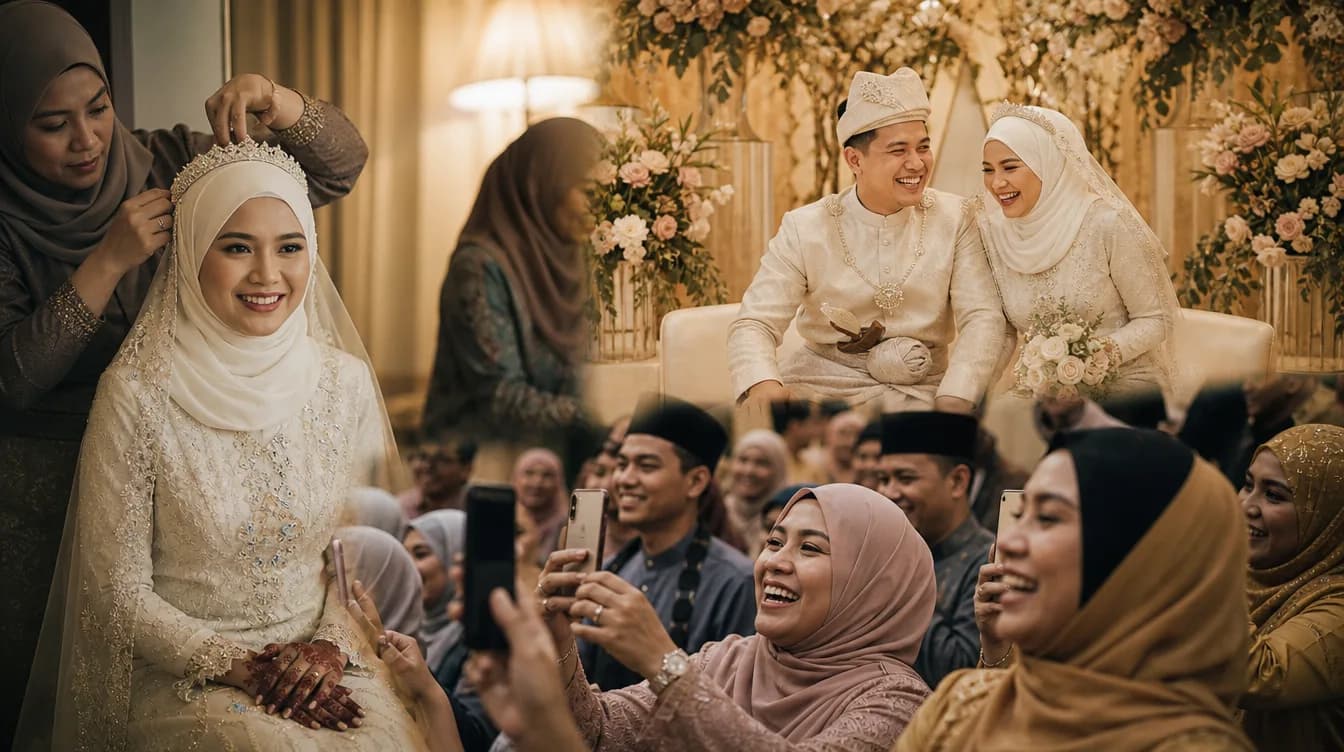
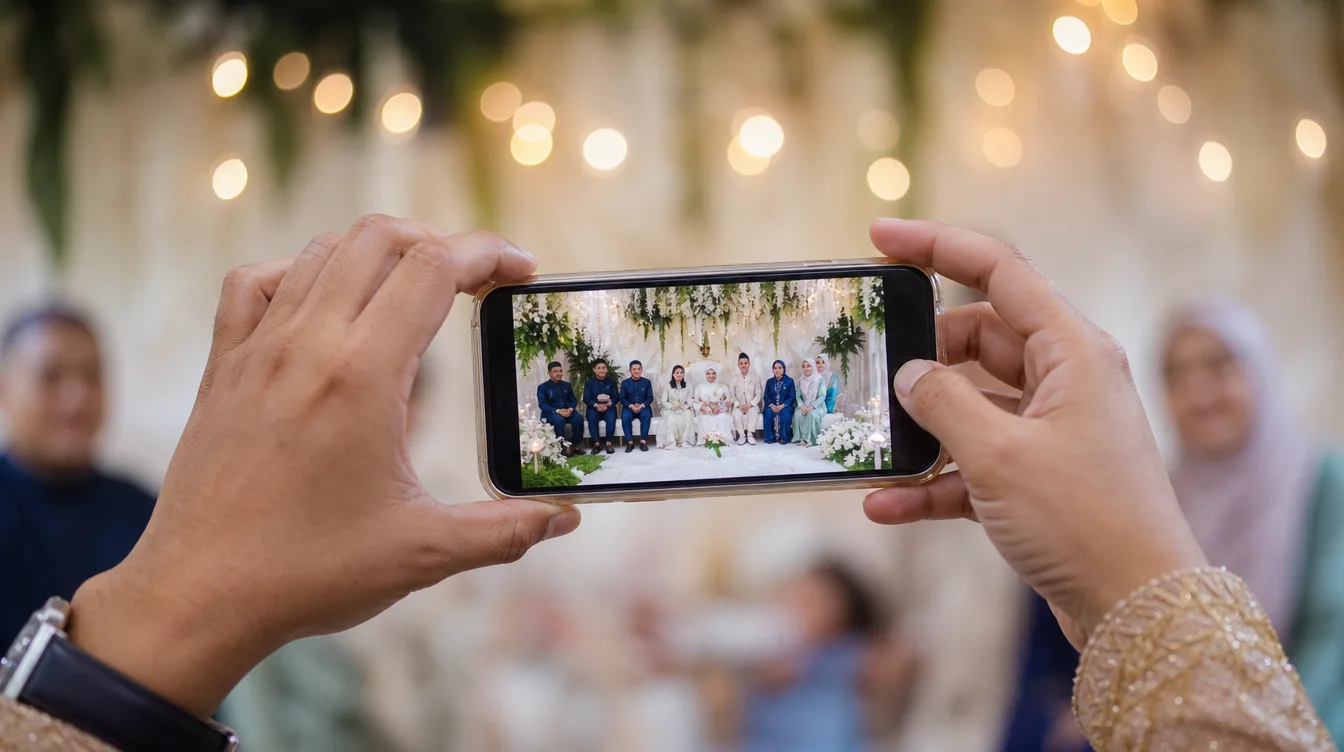
Your wedding day is a whirlwind of emotions, laughter, and countless moments you want to remember forever. While you hire a professional photographer to capture the key shots, your guests are also snapping away on their phones — candid laughs at the reception, the flower girl's dance moves, or aunties posing with their plates of nasi minyak. But after the party, those photos often vanish into individual WhatsApp chats or stay locked in phone galleries. A shared wedding photo gallery solves this by giving everyone one place to upload their pictures, no account required.
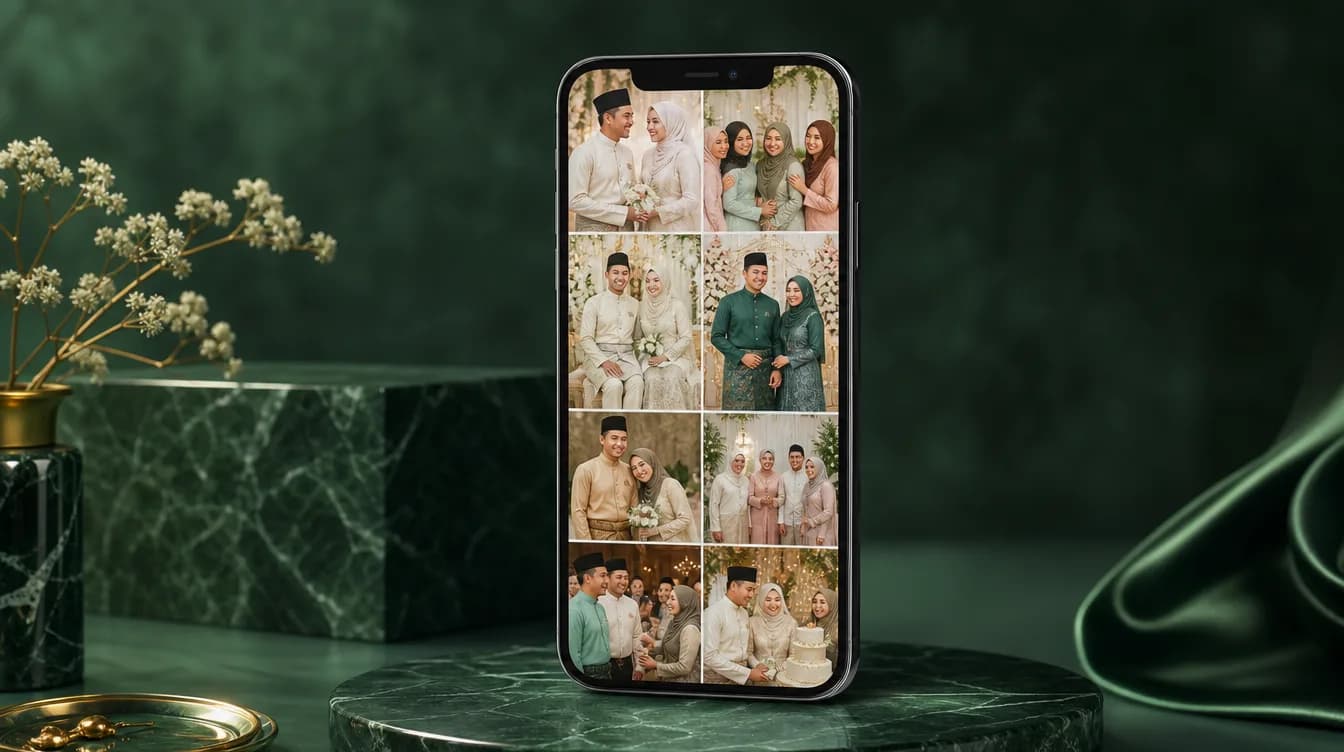
Imagine being able to see your wedding through fifty different lenses without chasing anyone for photos. That's the magic of a shared gallery. Guests scan a QR code, upload their images in seconds, and you get a complete collection you can download as a ZIP file. It's perfect for Malaysian weddings where you might have hundreds of guests across multiple events — from the akad nikah to the bersanding. This system works whether you're hosting in a grand hotel ballroom or a simple dewan kampung.
Tip: Place QR codes on every table and at the entrance. Make sure the code is large enough to scan from a distance — at least 5 cm wide.
Step 1: Create Your Gallery in the Gathrly App
Getting started is straightforward. Download the Gathrly app on iOS (it's designed for event hosts). After signing up, create a new gallery for your wedding. Give it a clear name like "Ali & Sarah's Wedding" or "Reception 12 Oct." You can add a short description — for example, "Please upload your best shots from your perspective. Thank you!"
The app generates a unique QR code for your gallery. This code is what guests will scan. There are no strict upload limits, so guests can share as many photos as they like. You can also adjust privacy settings — for instance, approve photos before they appear publicly, or let them show instantly. This flexibility ensures you control what gets displayed.
- Download Gathrly from the App Store (link below).
- Create an account and set up a new gallery.
- Your QR code is ready to print or share.
Step 2: Share the QR Code with Your Guests
Once your QR code is ready, you need to make sure every guest can scan it. Print the code on small cards and place them on tables, display it on a large screen during the event, or even include it in the wedding invitation. You can also share the direct link via WhatsApp or Telegram for guests who couldn't make it physically. Keep instructions simple: "Scan this QR code to upload your photos to our wedding gallery. No app needed."
For larger venues, ask your event crew to direct guests. For example, point to the QR code at the entrance as guests arrive. During breaks, have the emcee remind everyone via microphone. To make it blend with your wedding theme, consider designing an elegant QR code that matches your decor.
Tip: Use a professional printing service for QR cards. Avoid home-printed versions that might smudge or be hard to scan.
Step 3: Guests Upload Photos Effortlessly
When a guest scans the QR code, they land on a simple web page in their phone browser. The interface is clean: a prominent "Upload" button. They can select multiple photos from their gallery, add captions if they like, and hit submit. No login, no app download — this is crucial for older relatives who may not be tech-savvy.
Uploaded photos appear in the gallery in real time. As the host, you can view them instantly in the Gathrly app. If you're worried about inappropriate content, enable approval mode so photos only go live after you review them. This approach is far superior to a WhatsApp group, which quickly becomes cluttered with messages and low-quality images. For a deeper comparison, check out how event photo apps stack up against WhatsApp and Google Photos.
Step 4: Download All Photos as a ZIP File
After the wedding, you can download the entire gallery as a ZIP file directly from the Gathrly app. This makes it easy to store all images on your computer or external drive. You can also share the gallery link with family members who want to browse or download individual photos. The gallery stays active as long as you don't delete it, so you can revisit memories anytime.
Think about creating a physical photo album or a slideshow for your first anniversary. Having all photos in one ZIP speeds up the process. You can pick the best ones for printing or sharing on social media. For more details, see how to download all your event photos as a ZIP.
Tip: After downloading, create separate folders for photos from different parts of the event if you like. Gathrly doesn't sort automatically, but you can use timestamps or file names.
Extra Tips for a Successful Wedding Gallery
To encourage guests to actually upload, offer a little incentive. For example, run a lucky draw: guests who upload a photo get a chance to win a small prize. Or have the emcee remind everyone a few times: "Don't forget to scan the QR code on your table to share your photos!"
Also, make sure the QR code is easy to scan. Avoid placing it in dim light or too high up. Test it yourself with several phones before the event. If you encounter issues, reprint with higher contrast. With a bit of preparation, your shared wedding photo gallery will become a treasured collection accessible to everyone.
Now it's your turn. Download the Gathrly app on iOS and create your first gallery. Your guests only need to scan the QR code — no account required. Make your wedding even more memorable with photos from everyone who matters.
Get the Gathrly iOS app now and start hosting your shared wedding photo gallery.